
Development Store
A development store is a free YouCan store that acts as a sandbox for theme development. It's where your local theme gets uploaded, previewed, and tested before you submit it for review.
Prerequisites
To create or access a development store, you need a YouCan Partner account. Register for one here.
Creating a Development Store
- Log in to your Partner Dashboard.
- Go to Stores > then click on New Store.
- In the Store details section, enter a name for your store.
- Click Create Store.
You can create multiple development stores to work on several themes at once, or to test the same theme against different store configurations. The YouCan CLI lets you switch between them.
Accessing Your Development Store
- From your Partner Dashboard, navigate to Stores and find your development store, marked by the
devlabel. - Sign in to access the store.
Password Protection
Development stores are password-protected to prevent misuse. When accessing the storefront, you'll be prompted for a password.
How to set your password
- Log in to your Seller Area.
- Go to Settings > General > Access Control.
- Set or update your password in the Password Protection section.
Info
The password expires after 2 hours, requiring re-entry for continued access. This protects your development environment from unauthorized usage.
Connecting the CLI to your store
Your theme is tied to the store the YouCan CLI is authenticated against, so connect the CLI before running youcan theme init.
- Make sure you have the latest CLI installed:
npm install -g @youcan/cli@latest @youcan/theme@latest- Authorize the CLI to access your store:
youcan auth login- When prompted, select your development store rather than a live store, so the CLI targets the correct endpoints.
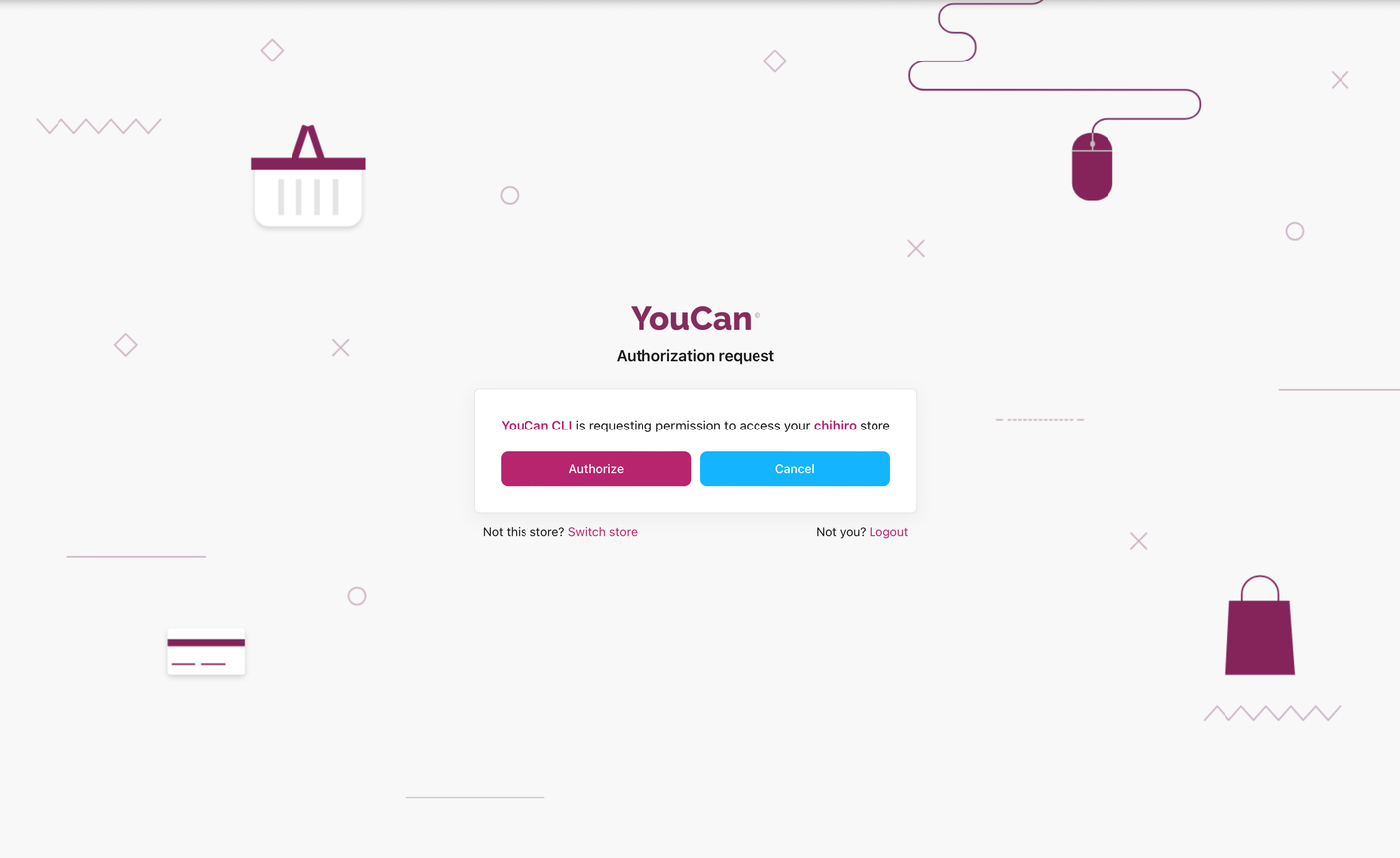
From here, youcan theme init uploads a new theme to this store as a development version, and youcan theme dev serves your local changes against its data. See the command reference for the full list.
Previewing your theme in the Seller Area
The Seller Area is the seller-facing dashboard of your development store, and it's where you preview a theme the way a merchant would see it.
- Log in to your Partner Dashboard, click Stores, then Sign In to your development store.
- Go to Themes in the sidebar.
- Find your development theme and click Preview or Customize.
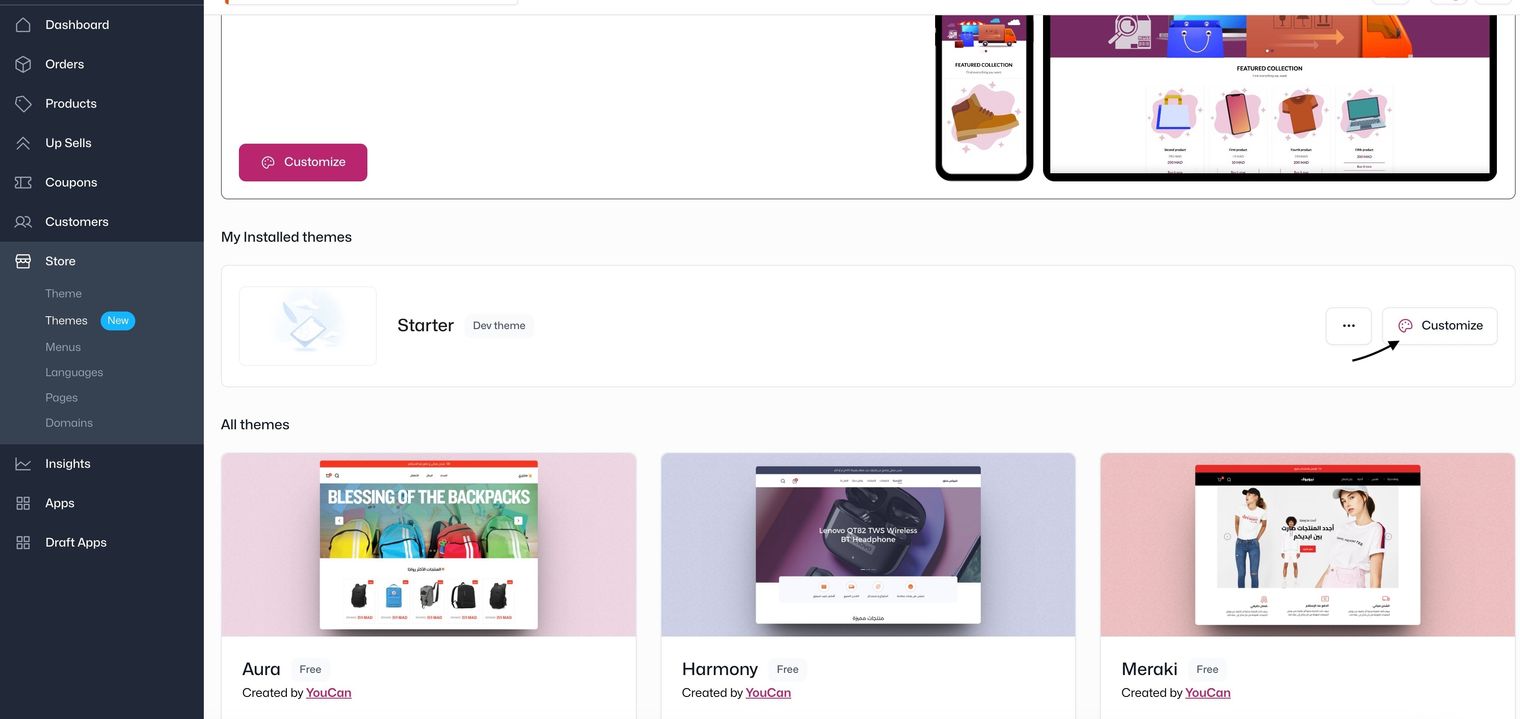
Customize opens the theme editor, where you can add and reorder sections, adjust their settings, and test any theme app extensions installed on the store.
Note
Keep youcan theme dev running while you preview. Changes you save locally are pushed to the development theme, so the editor and storefront reflect your latest code.
Test data
An empty store makes it hard to tell whether a template works. Before previewing, add a handful of products, at least one collection, and a couple of pages from the Seller Area so that product, collection, and cart templates render with realistic content.